Picture to Painting That Looks Brushed, Not Blurred
Upload a photo, name oil, watercolor or ink, and the picture to painting editor repaints it with visible strokes, keeping the face.
JPG, PNG or WebP, up to 10 MB each
Examples
Start from a real picture to painting result
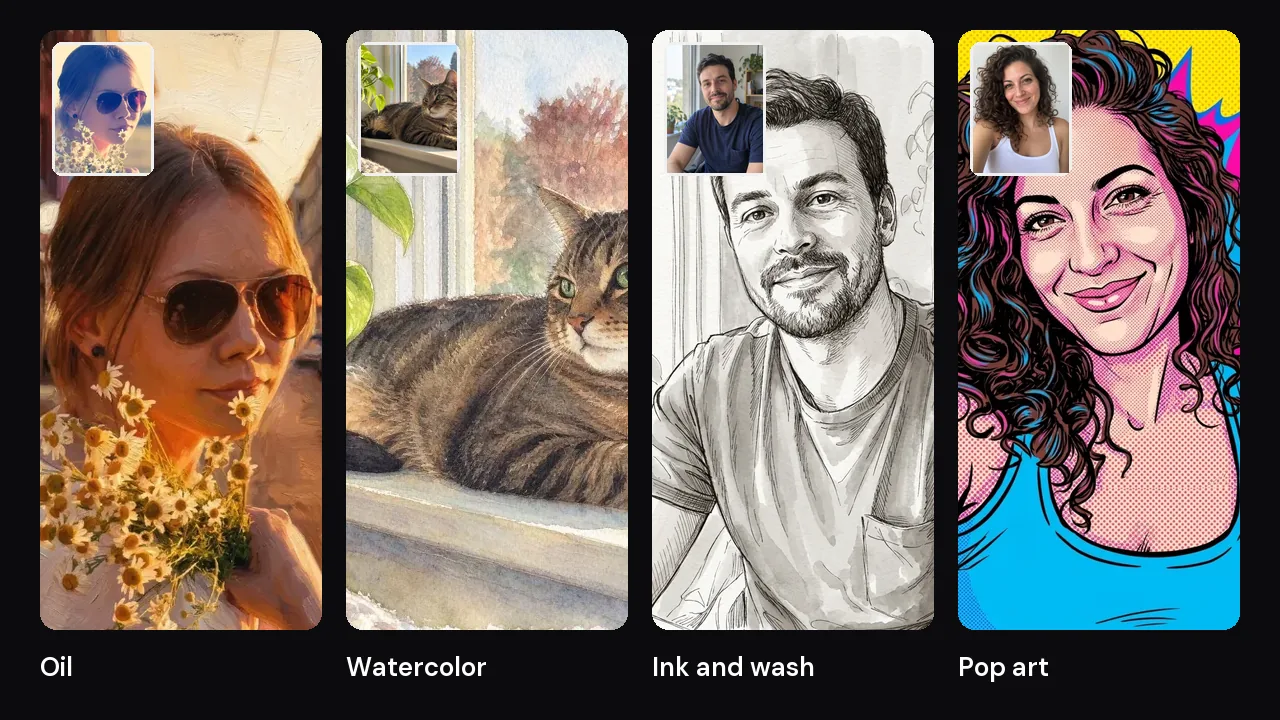
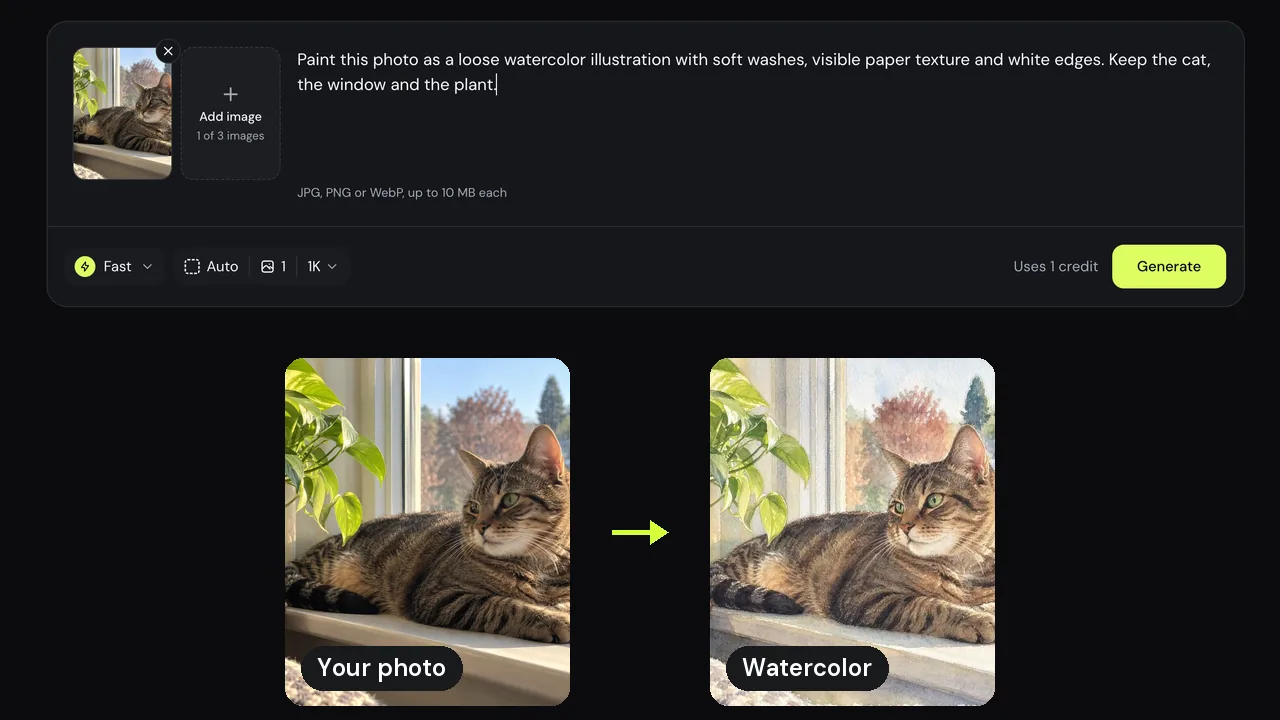
Each card is a real result from this editor. Watercolor Painting loads a cat photo and its prompt into the picture to painting tool; ink and pop art show two other picture to painting looks.
Only want soft washes? See photo to watercolor. Want a cartoon instead of a painting? Try image to cartoon, or open the image to image editor for any other look.
How it works
Picture to painting in 3 steps
The picture to painting tool needs one clear photo and one sentence about the paint you want.
Upload a clear photo
Faces, pets and landscapes all work. Even light helps the picture to painting result keep detail. JPG, PNG or WebP up to 10 MB.
Name the paint
Load Watercolor Painting, or write oil painting, watercolor or ink and wash, plus thick brushstrokes and keep the face.
Generate and compare
Pro took 25 to 44 seconds in our tests. Drag the slider to compare, then download or press Try again.
Results
What our picture to painting tests changed
Real picture to painting and photo to art results from this editor, measured against their original photos.
A street portrait repainted in oil
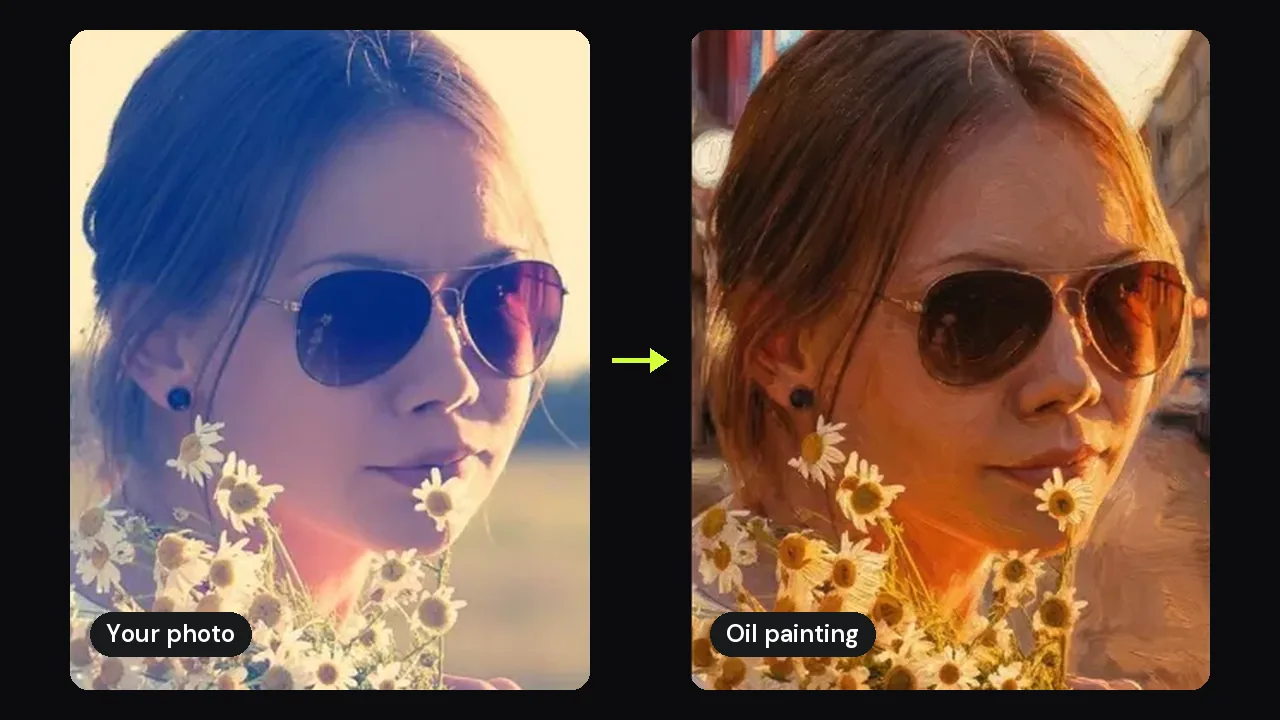
Our oil test started from a portrait of a woman in aviator sunglasses holding daisies. We changed the background and light first, then asked for oil in Pro. Strongly colored pixels went from 15.5% of the photo to 63% of the picture to painting result, and her face, glasses and flowers stayed in place.
Brushstrokes where the photo was flat
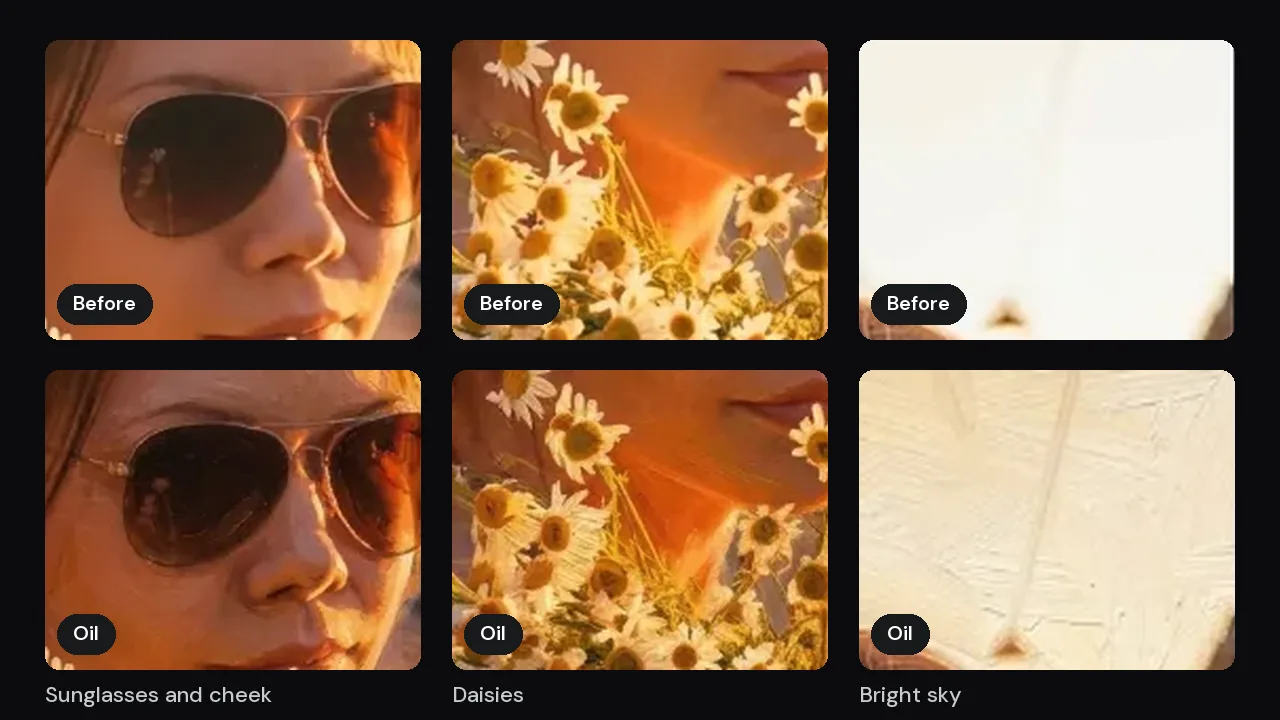
Zoom in and the oil step painted strokes into her cheek, the daisy petals and the bright sky, which was plain white before. Edge pixels rose from 7.9% to 10%. Thin details like the glasses frame stayed sharp, so the picture to painting result still looks like her.
Four paint styles from real runs
Oil, watercolor, ink and wash, and pop art, each from a different test photo. Watercolor softened every color; ink and wash turned a portrait into fine lines and gray wash. To convert photo to painting well, pick the picture to painting style that suits the photo.
Each style changes different pixels
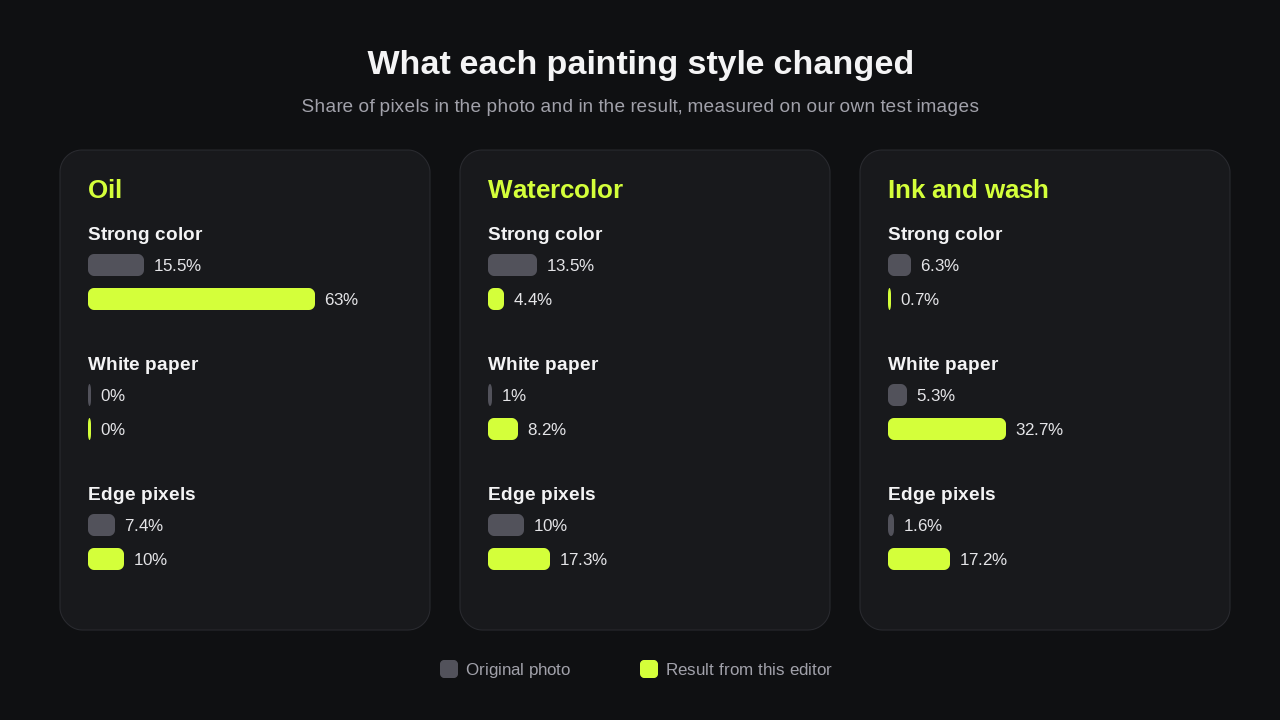
Oil raised strong color to 63% of the pixels. Watercolor cut it from 13.5% to 4.4% and left 8.2% of the frame as white paper. Ink and wash left almost a third of the frame white. For a framed picture to painting print, choose oil; for a light card, watercolor.
Load a template, swap in your photo
Every card loads a real photo and its prompt into the picture to painting editor. Replace the photo with yours, change watercolor to oil if you like, and press Generate.
Prompts
Picture to painting prompts for oil, impressionist and more
Paste one into the picture to painting editor and change the details.
Photo to oil painting
Repaint this photo as an oil painting with thick visible brushstrokes and warm light. Keep the face, pose and clothes.
Impressionist
Turn this photo into an impressionist painting with short dabs of color and soft edges. Keep the people where they are.
Family portrait on canvas
Repaint this family photo as a classic oil portrait on canvas with a dark background. Keep every face the same.
Bright acrylic landscape
Paint this landscape as a bright acrylic painting with flat color areas and bold strokes. Keep the horizon and the trees.
Tips
Tips for a better photo to painting result
A picture to painting result is only as clear as the photo it starts from.
Crop to what matters
Fill the frame with the face or the scene. Small faces lose detail first when the picture to painting tool adds strokes.
Name the paint and the strokes
Oil, watercolor or ink, plus thick, loose or fine strokes. Those few words changed more in our tests than a long prompt.
Edit in steps
Change the background or light first, then ask for the painting with Edit this result, as we did in the oil test.
Good to know
How we tested and what to expect
Picture to painting results made with this editor and measured on November 23, 2026 by the Image to Image team.
Test
Oil in Pro, watercolor in Fast, ink and wash and pop art in Pro. We counted strong color, white and edge pixels in each photo and result.
Speed
Pro picture to painting runs took 25 to 44 seconds in our tests; Fast took about 14 seconds.
Cost
Fast uses 1 credit, Pro 2 and Pro HD 3, about $0.20, $0.40 and $0.60 with the $9.99 pack. New accounts may get 2 free credits.
Limits
This is AI picture to painting, not a hand-painted canvas. Our oil test was the third edit of one photo, the strokes are flat pixels, and we did not test group photos.
Privacy
Uploads and results are deleted after 7 days.
FAQ
Questions about picture to painting
Is this picture to painting tool free?
You can try it free. New accounts may get 2 free credits while the daily allowance lasts, enough for one Pro picture to painting run or two in Fast. Packs start at $9.99 for 50 credits.
Which paint styles can it do?
Any style you can name. We tested oil, watercolor, ink and wash and pop art in the picture to painting editor, and acrylic or impressionist prompts work too. To turn photo into art without paint, try sketch or pop art.
Is it the same as a hand-painted portrait?
No. Some shops turn photo into painting by hand and ship a canvas weeks later. Here the AI repaints the image in under a minute, as a file you print yourself.
How is it different from a painting filter?
A painting filter smooths and recolors the pixels you already have. The picture to painting editor redraws the image: in our oil test, the plain white sky gained strokes that were never in the photo.
How big can I print it?
Pro HD saves 2048 pixels on the long side, about 6.8 inches at 300 dpi or 13.6 inches at 150 dpi. Print a small proof first.
Ready to turn your picture into a painting?
Upload a photo, name the paint, and the picture to painting editor repaints it in under a minute.