Turn a Photo to Sketch with AI
Upload a photo, pick a pencil, charcoal or ink style, and get a sketch that keeps the face, pose and layout of your original.
JPG, PNG or WebP, up to 10 MB each
Styles
Pick a photo to sketch style
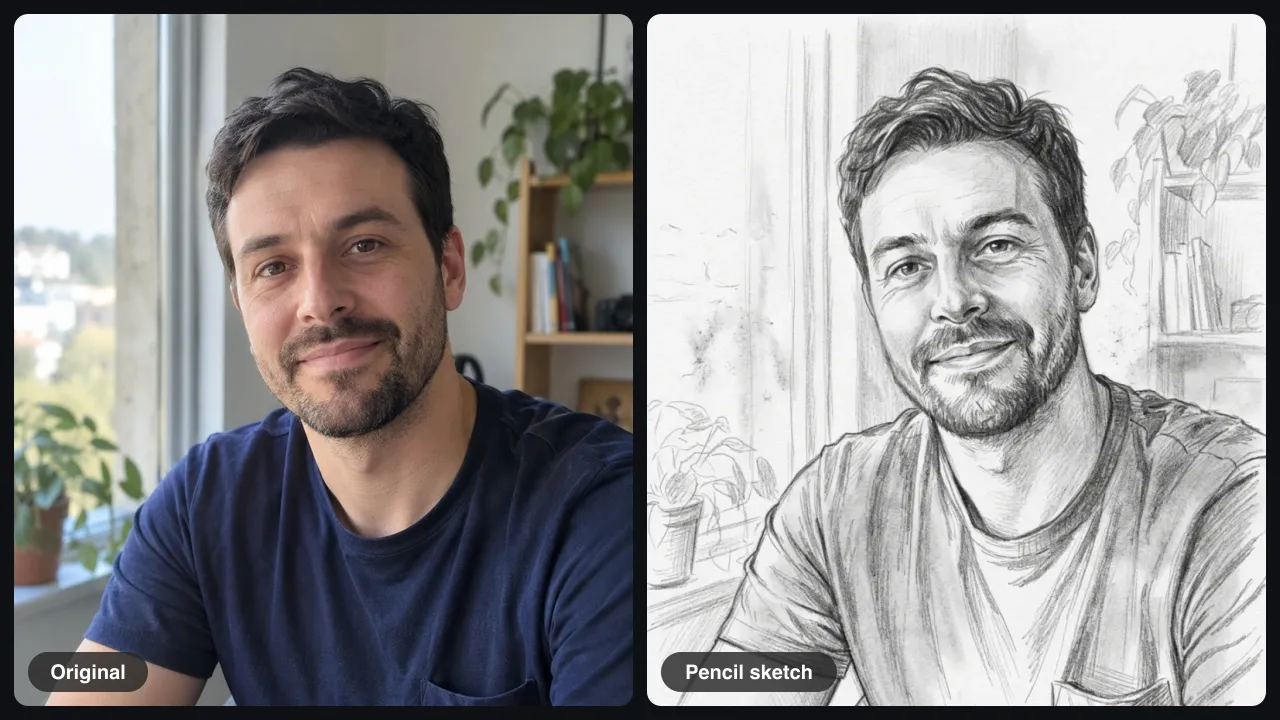
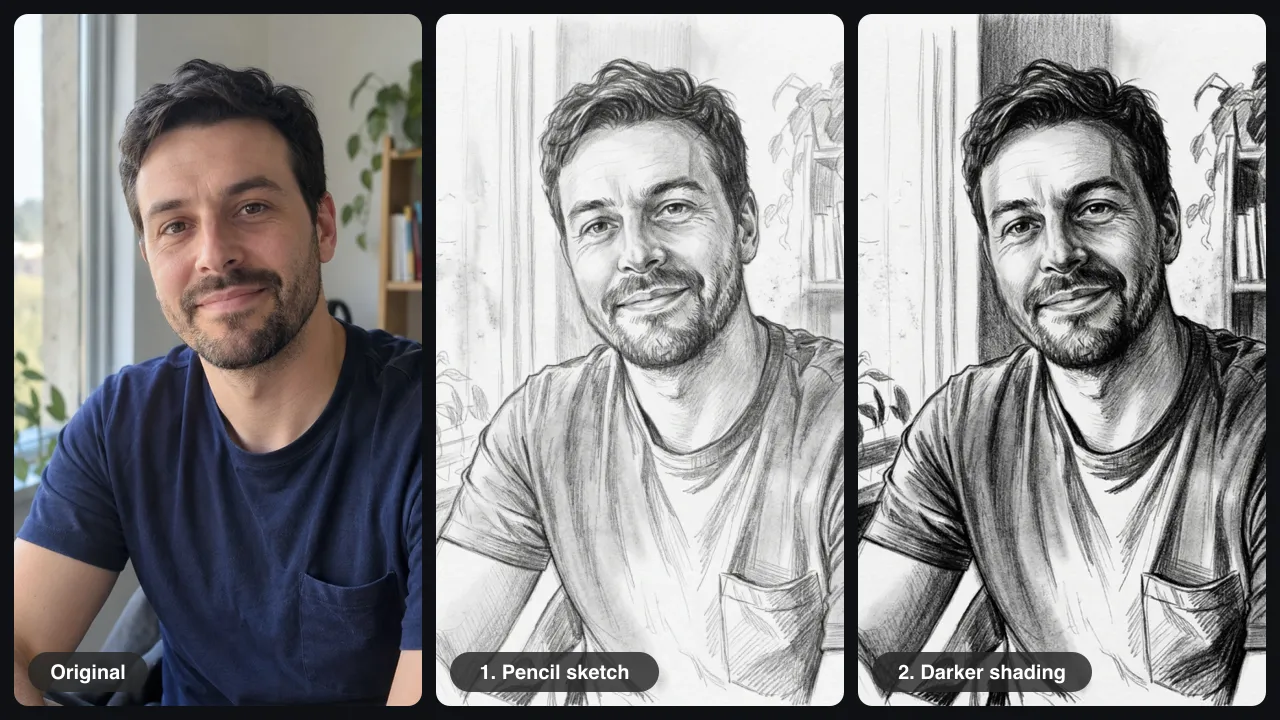
Each card is a real photo to sketch result from the same portrait. Choose one to load its prompt, then upload your own photo. Photo to pencil sketch is the classic look; charcoal, colored pencil and ink give you three more.
Want a different change? Change image background behind the same photo, or open the image to image editor for any style you describe. For anime instead, try photo to anime, and for a clean backdrop before you sketch, use the white background photo editor. Prefer color? Try photo to watercolor, or make an AI pet portrait of your dog or cat. Need an avatar? Try the AI profile picture generator.
How it works
How to turn a photo into a sketch in 3 steps
To turn photo into sketch art with AI, the editor redraws your picture stroke by stroke instead of tracing its edges. You upload one photo, choose a style, and the AI keeps who and what is in it.
Upload your photo
Add a JPG, PNG or WebP up to 10 MB. A sharp face or subject with even light gives the best photo to sketch result.
Choose a sketch style
Pick pencil, charcoal, colored pencil or ink above, or write your own prompt, such as soft graphite shading on white paper.
Generate and download
Most photo to sketch results are ready in about 30 seconds. Compare before and after, download, or keep editing.
Results
Sketches that still look like your photo
People ask for photo to sketch tools that keep faces right. The prompts here tell the AI to keep the face, expression, pose and background layout, so the drawing still looks like the picture you started with.
Portraits that keep the face
A selfie or family photo to sketch keeps the eyes, beard, hairline and smile of the person in the shot. In our photo to sketch tests the face stayed recognizable in every style. Use it for profile pictures, a gift for a parent or a framed print.
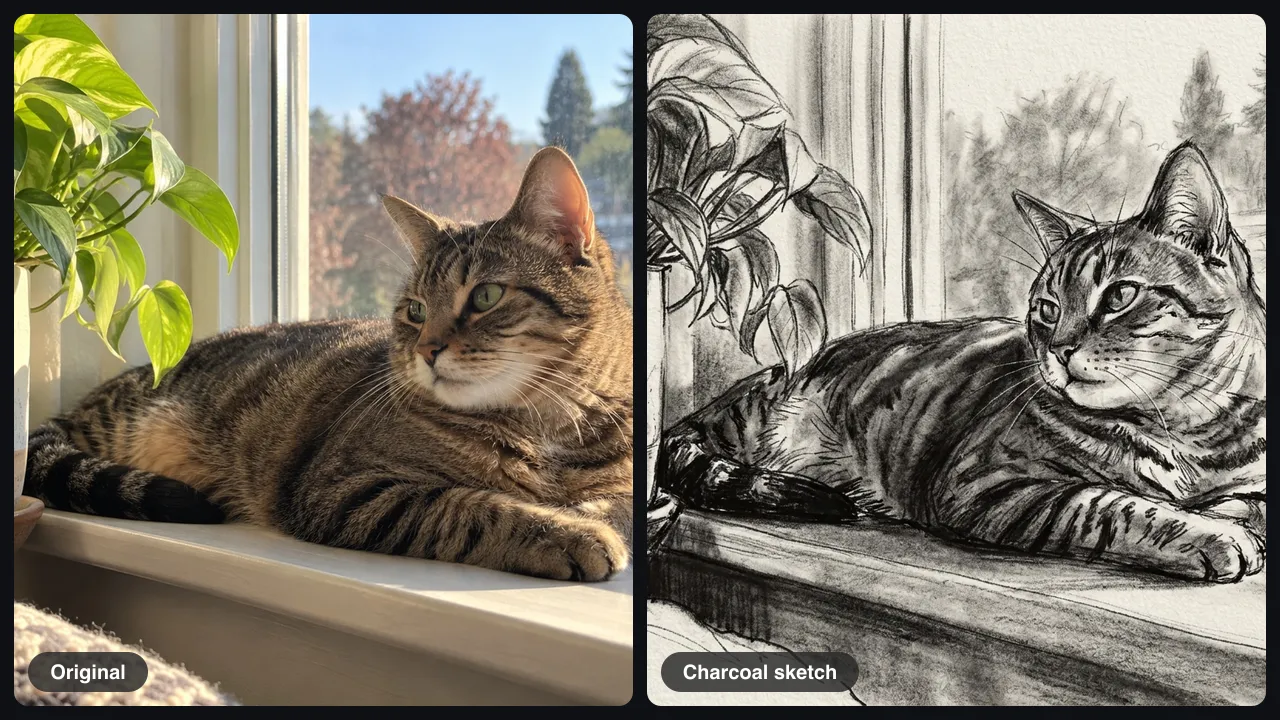
Pets with every stripe and whisker
A cat or dog photo to sketch is where a filter usually fails, because fur turns into noise. The AI draws fur as strokes, keeps the markings and pose, and redraws the window and plant behind it. This picture to drawing works well for pet memorials and shelter profiles.
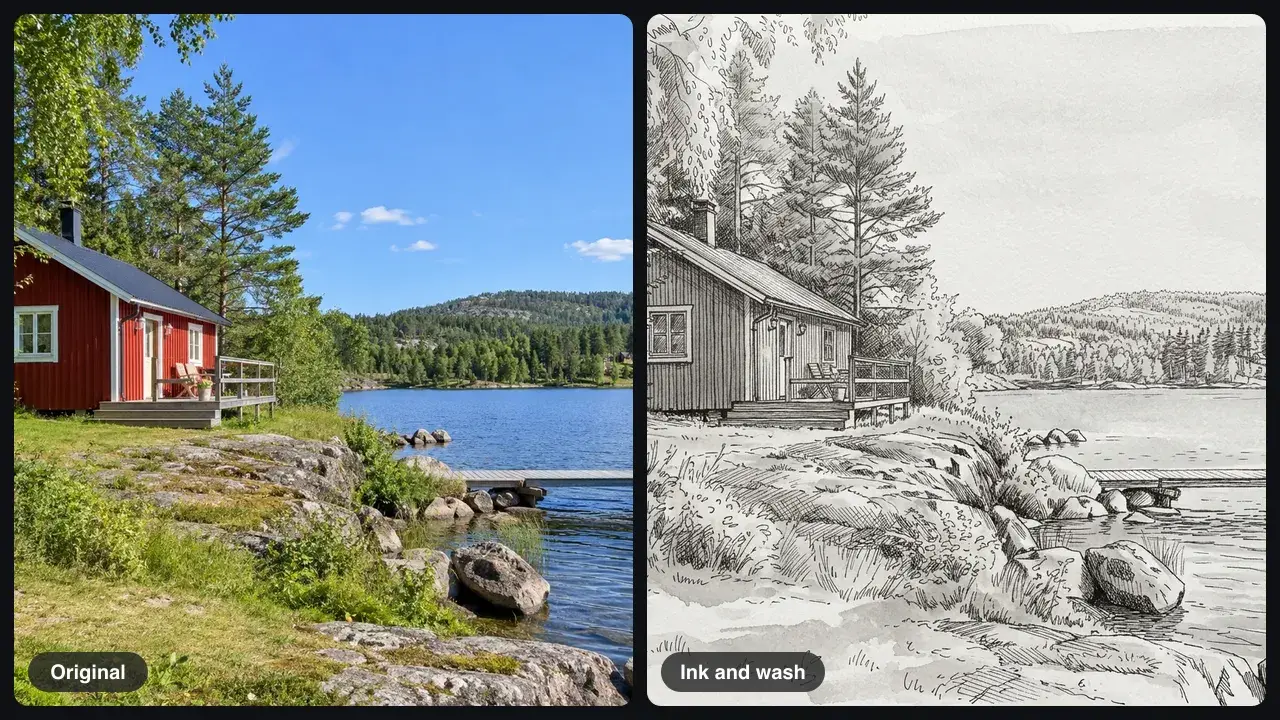
Houses, streets and travel shots
Turn a holiday photo to sketch for a postcard or a wall print. Straight lines on roofs, decks and docks stay straight, and the ink and wash style adds soft gray tones like an urban sketchbook page. Image to drawing works for any place you want to remember.
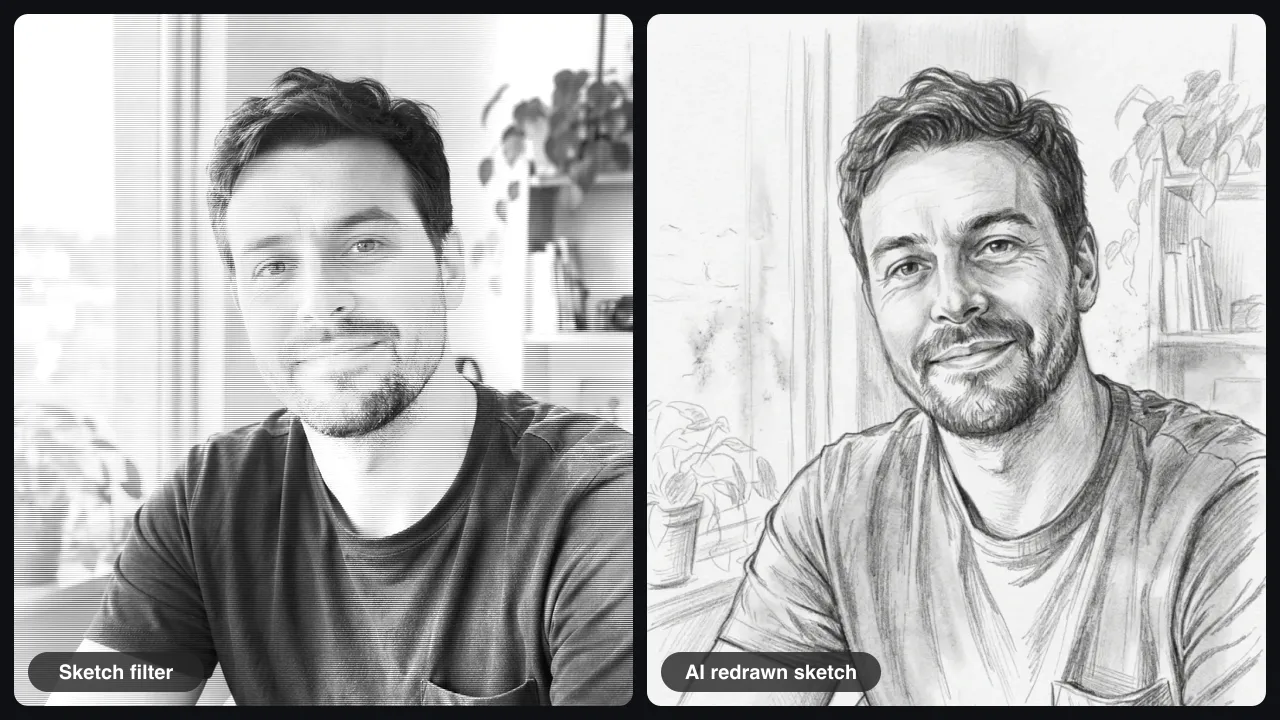
More than a sketch filter
A sketch filter or image to sketch converter app traces edges with a math formula, so you get thin gray outlines and flat areas. The AI redraws the photo to sketch with real shading, hatching and paper texture. If you want a no-AI filter look, any phone app does that.
Keep editing until it looks right
Choose Edit this result and write one sentence, such as make the shading darker or remove the background and leave white paper. Each step builds on the last photo to sketch result, so you never start over.
Ideas
Prompt ideas for photo to sketch
Copy one into the photo to sketch editor and change the subject. End every prompt with what must stay the same.
Soft portrait
Redraw this photo as a soft graphite pencil sketch on white paper. Keep the face and expression.
Bold charcoal
Turn this photo into a charcoal drawing with deep blacks and smudged shadows. Keep the pose.
Line art
Turn this photo into clean black line art with no shading on a white background.
Pet portrait
Redraw my dog as a pencil sketch with detailed fur. Keep its markings and collar.
Travel sketch
Turn this street photo into a pen and ink sketch with light watercolor wash.
Tips
Tips for a better sketch
A few habits make photo to sketch results cleaner on the first try.
Use even light
Harsh shadows turn into heavy black patches in a photo to sketch result.
Fill the frame with the face
Small faces in a group photo lose detail; crop closer first.
Say what stays
Add keep the face and expression to every portrait prompt.
Good to know
What you can and can't do
Here is what to expect before you turn a photo to sketch.
Speed
About 30 seconds per photo to sketch in our tests, 44 seconds at most.
Cost
Fast uses 1 credit, Pro 2 and Pro HD 3. New accounts may get 2 free credits.
Output
Pro HD saves at 2048 pixels, enough for an A4 print.
Limits
Text and logos get redrawn and may change, side profiles and tiny faces can drift, and each run is a little different.
Privacy
Uploads and results are deleted after 7 days.
FAQ
Questions about photo to sketch
How do I convert an image to a sketch for free?
Sign up, and new accounts may get 2 free credits while the daily allowance lasts. That covers two Fast photo to sketch results or one Pro result. After that, credit packs start at $9.99 for 50 credits.
Can I turn a photo into a pencil sketch without an app?
Yes. The photo to sketch editor runs in your browser on a phone or a computer, so there is nothing to install. Upload, pick the pencil style and press Generate.
Will the sketch still look like the person in the photo?
In our photo to sketch tests, front-facing portraits kept the face, beard and expression in all four styles. Side profiles and small faces in group shots can drift, so crop close and use Pro.
What is the difference between a sketch and a line drawing?
A sketch has shading and texture; a line drawing has only outlines. For line art, write clean black lines, no shading in your prompt.
Can I print the sketch or use it as a gift?
Yes. Pro HD gives a 2048-pixel photo to sketch image that prints well up to A4. You can use results for personal and commercial projects if you own the photo you upload.
Ready to turn your photo to sketch?
Upload a photo, pick a style, and get your sketch in about 30 seconds.