AI Christmas Photo That Keeps Every Face
Upload one family, couple or pet photo and get an AI Christmas photo with snow, warm lights and scarves, every face kept the same.
JPG, PNG or WebP, up to 10 MB each
Examples
Start from a real AI Christmas photo
Both cards are real AI Christmas photo results from this editor: a fall couple photo turned festive and a summer cabin turned snowy. Pick one to load its photo and prompt.
Want a greeting on it? Use the Christmas card generator. For a festive room behind you, try AI room design, or open the image to image editor for any other edit.
How it works
How to make an AI Christmas photo in 3 steps
An AI Christmas photo needs one clear photo and one sentence about the scene.
Upload a clear photo
Any photo works for an AI Christmas photo: a family shot, a couple selfie or the dog on the sofa. Faces should be sharp. JPG, PNG or WebP up to 10 MB.
Describe the Christmas scene
Load Holiday Card, or write the scene, outfit and light you want. End with keep every face the same.
Generate and check every face
Drag the slider over each face, then download the AI Christmas photo or ask for one more change.
Results
Does an AI Christmas photo look real?
A Christmas photo filter app lays snow and frames on top of a picture. An AI Christmas photo redraws the scene, so we checked whether the light, snow and faces still match.
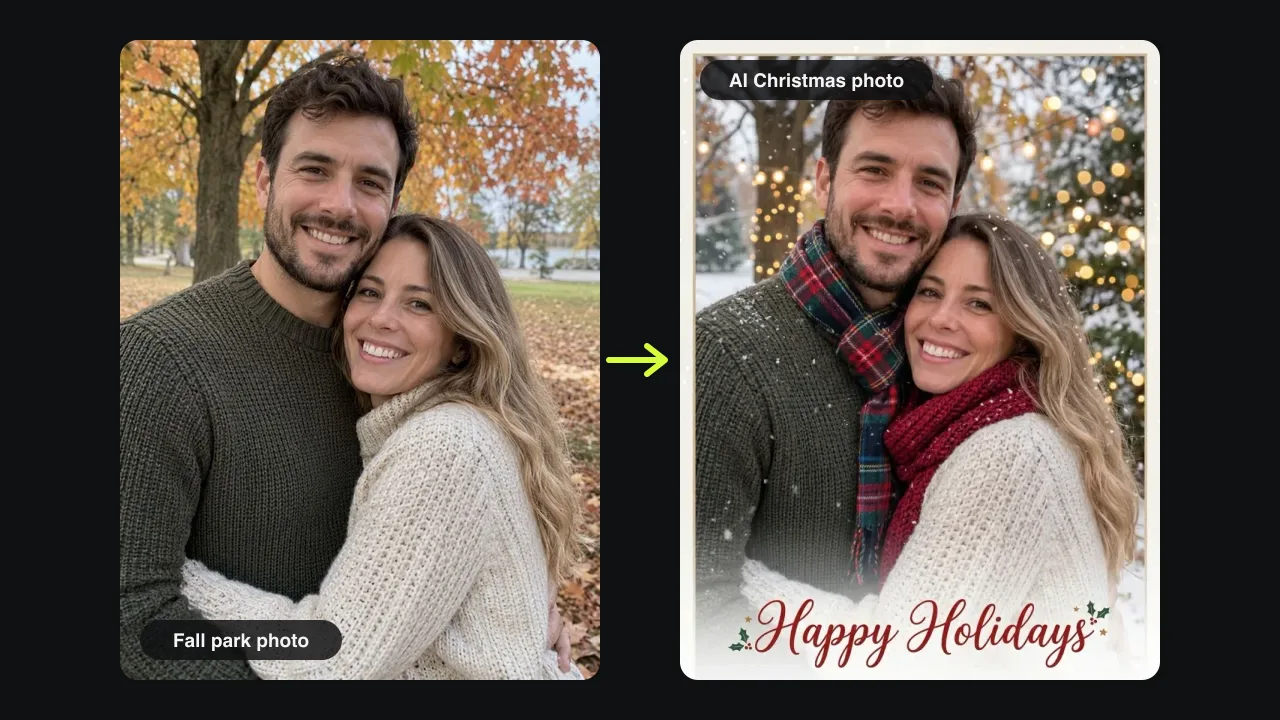
From a fall park to a snowy Christmas photo
Our test photo was a couple hugging under orange fall leaves. One Pro run gave an AI Christmas photo with snow on the ground, a lit pine behind them, string lights and two knit scarves. The template also writes Happy Holidays; leave that line out for a plain photo.
Snow and lights that sit inside the photo
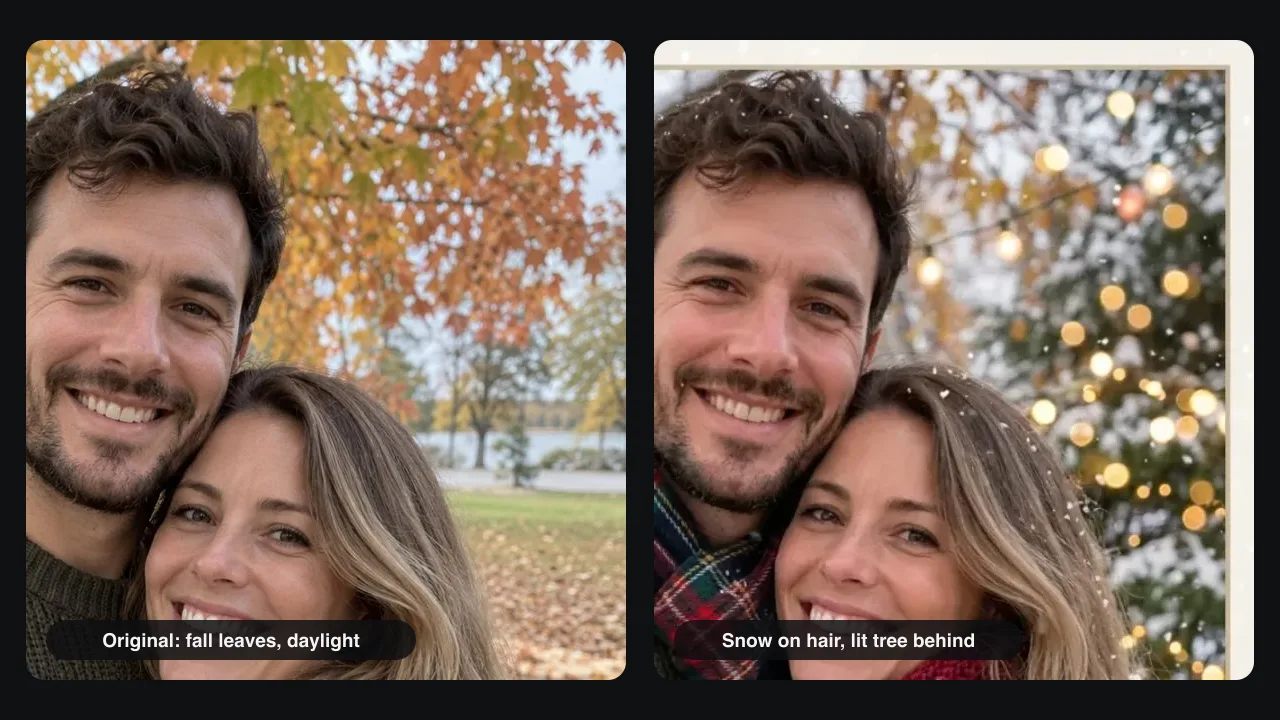
Crop the same corner of both images: the faces, smiles and sweaters match. Snowflakes land on hair and wool, and the lights glow behind the couple, not on top. A few orange leaves stayed on the branches, so ask for winter trees in your AI Christmas photo prompt.
Snow on any photo, not only people
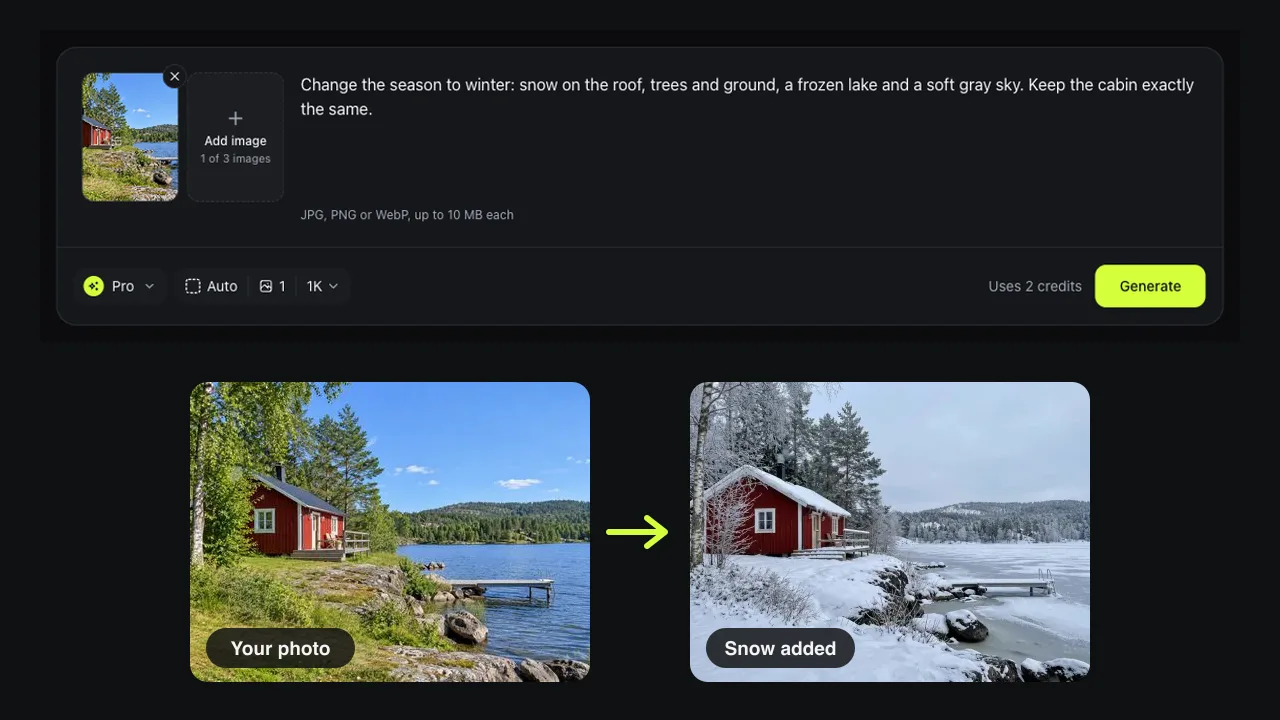
Summer to Winter was our snow test for an AI Christmas photo of a place: a red lakeside cabin in summer. The AI added snow to the roof, trees and rocks, froze the lake and grayed the sky, while the windows, deck and dock stayed put.
Build your own Christmas scene
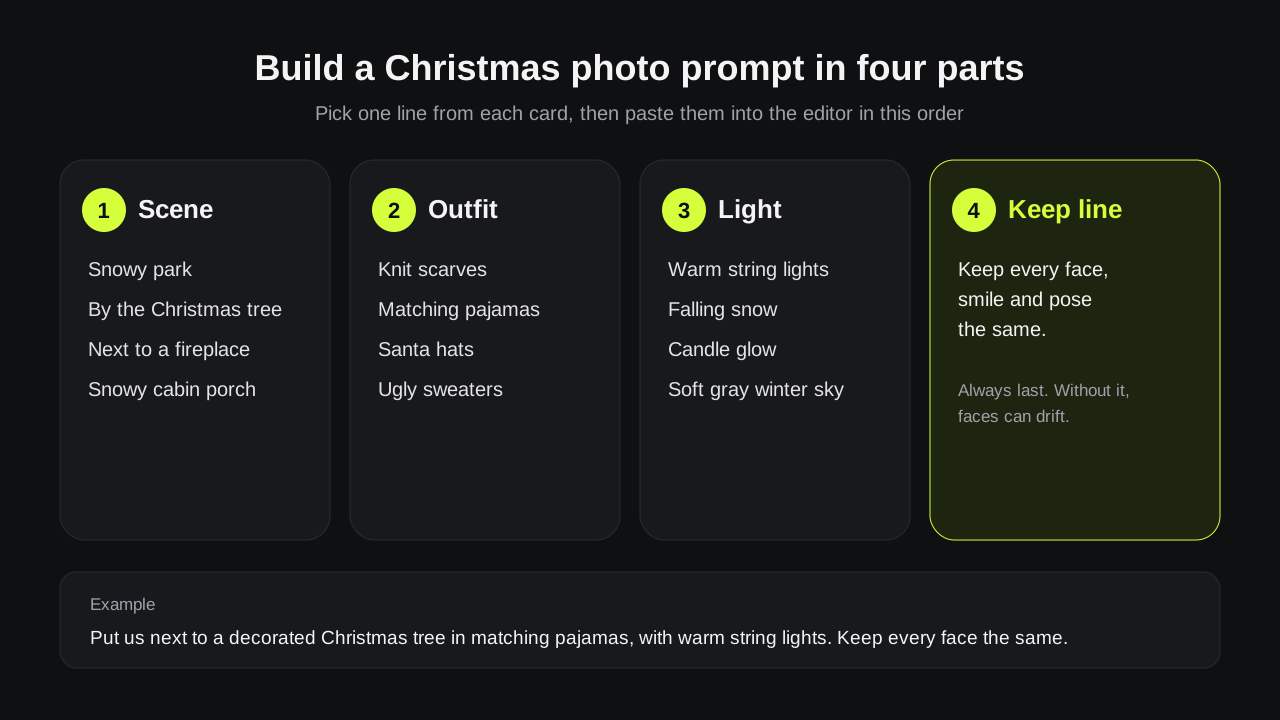
Every AI Christmas photo prompt we liked had four parts: a scene, an outfit, the light and a keep line. Mix them for a family by the tree, a couple in matching pajamas or a pet in a Santa hat.
Prompts
AI Christmas photo prompt ideas
Paste one into the editor and change the details. The last sentence of each AI Christmas photo prompt protects the faces.
By the tree
Put this family next to a decorated Christmas tree in a cozy living room with warm string lights. Keep every face, smile and pose the same.
Matching pajamas
Dress everyone in matching red plaid Christmas pajamas on a sofa with a fireplace behind. Keep every face the same.
Snowy evening walk
Turn this photo into a snowy winter evening with falling snow and street lights. Keep both faces and our coats.
Pet in a Santa hat
Put a small Santa hat on my dog and add falling snow and soft lights behind it. Keep its face, fur and collar.
Tips
Tips for an AI Christmas photo that still looks like you
An AI Christmas photo is only as good as the faces in the original.
Crop to the people
If faces are small in the frame, crop closer before you upload; tiny faces are the first to change in an AI Christmas photo.
Name the season
Write winter trees or snowy ground, or fall leaves can stay on the branches, as they did in our test.
One change per run
Add the scene first, then use Edit this result for the pajamas or the hat. Smaller steps are easier to check.
Good to know
How we tested and what to expect
Tested on November 16, 2026 by the Image to Image team.
Test
Holiday Card and Summer to Winter templates in Pro mode, compared crop by crop with the original photos.
Speed
Pro AI Christmas photo runs took 25 to 44 seconds in our tests; Fast took about 14 seconds.
Cost
Fast uses 1 credit, Pro 2 and Pro HD 3. New accounts may get 2 free credits.
Limits
Small faces in group shots can change, leftover details like fall leaves can stay, and each Christmas AI photo run is a little different.
Privacy
Uploads and results are deleted after 7 days.
FAQ
Questions about AI Christmas photos
Is the AI Christmas photo generator free?
You can try it free. New accounts may get 2 free credits while the daily allowance lasts, enough for one Pro AI Christmas photo or two Fast ones. After that, packs start at $9.99 for 50 credits.
Do I need to upload 10 selfies?
No. One clear photo is enough, because the AI Christmas photo is an edit of that picture, not a model trained on your face. Group photos work too.
Is this the same as a Christmas photo filter?
Not quite. A Christmas photo filter puts snow, frames or stickers on top. Here the AI redraws the scene, so snow sits on hair and lights glow behind you. It takes longer than a filter, about half a minute.
Can I make an AI Christmas family photo?
Yes. Upload the family photo and say who must stay the same, such as keep all four faces and the dog's collar. Check each face with the slider before you share your AI Christmas pictures.
Can I print it or turn it into a card?
Yes. Pro HD saves your AI Christmas photo as a 2K image, about 7 × 5 inches at 300 dpi. To write a greeting on it, run the photo through the Christmas card generator.
Ready for your Christmas photo?
Upload one photo, describe the scene and get your AI Christmas photo in under a minute.